A small desktop overlay for meeting notes and bullet points. Paste talking points once, then keep the window on top while you present or record. The overlay is excluded from entire-screen sharing (Zoom, Meet, Teams, OBS) so viewers don't see it.
Download for Windows Download for MacFeatures
- Transparent overlay — Frameless, always-on-top window; position and resize as you like.
- Edit mode — Toggle with Ctrl+E to paste and edit bullet points and meeting notes; toggle back to view-only.
- Persistent notes — Notes are saved to disk and restored on next launch.
- Global hotkeys — Work even when the app is in the background.
- Hidden from screen share — Uses the same Windows API as InvisiWind (
SetWindowDisplayAffinity/WDA_EXCLUDEFROMCAPTURE). When you share your entire screen, the overlay is excluded from the capture. Requires Windows 10 2004 or later.
Hotkeys
| Shortcut | Action |
|---|---|
| Ctrl+B | Show or hide the overlay |
| Ctrl+Shift+D | Toggle click-through (clicks pass through overlay to apps behind) |
| Ctrl+E | Toggle edit mode |
| Ctrl+M | Enlarge the window |
| Ctrl+N | Shrink the window |
| Ctrl+Arrow | Move the window |
In edit mode: Esc to save and switch back to view mode. To edit notes while click-through is on, press Ctrl+Shift+D first to turn it off.
Install & run
Windows
- Windows: Download the installer from the button above (e.g. Talking Point Setup 1.0.0.exe).
- Windows: Run the .exe file. If Windows shows a SmartScreen prompt, click “More info” then “Run anyway” if you trust the publisher.
- Windows: Follow the setup wizard: choose an install location (or keep the default), then finish. The app will be installed with a Start Menu shortcut and an optional Desktop shortcut.
- Windows: Launch Talking Point from the Start Menu or Desktop. Use Ctrl+B to show or hide the overlay.
- Windows: Uninstall anytime via Settings → Apps → Talking Point → Uninstall.
Mac
- Mac: Download the .dmg file from the button above (e.g. Talking Point-1.0.0-arm64.dmg).
- Mac: Open the downloaded .dmg file, then drag Talking Point into your Applications folder.
- Mac: Open Talking Point from Applications. If macOS shows a security warning, go to System Settings → Privacy & Security and click “Open Anyway.”
- Mac: You may need to grant Accessibility permissions for global hotkeys. Go to System Settings → Privacy & Security → Accessibility and enable Talking Point.
- Mac: To uninstall, delete Talking Point from the Applications folder.
Troubleshooting
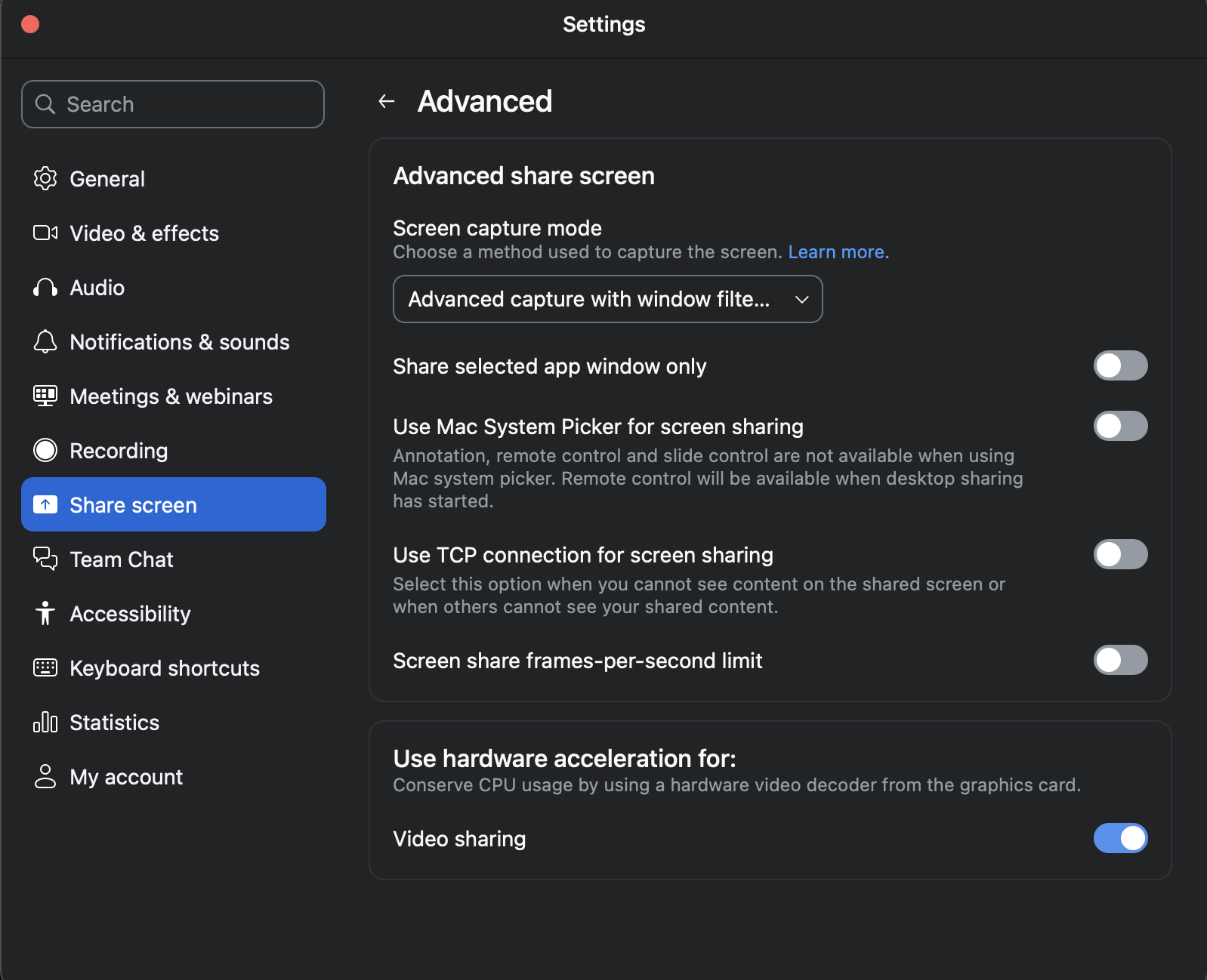
If the Talking Point interface is visible on apps like Zoom when you share your screen, enable Advanced capture with window filter in your meeting or recording app so it can exclude the overlay from capture.